 Battery Drain Insights
Help and first steps
, for version 1.0. Written by devhoku.
Battery Drain Insights watches what uses your MacBook's battery and says it in plain words. Install it, let it read your Mac's battery diary, leave Open at login on, and unplug. A first picture takes about 15 minutes on battery. On the charger the app rests and uses next to nothing.
Needs a Mac with a built-in battery macOS 12 or later, Apple silicon and Intel Permissions two, both optional
How do you set up Battery Drain Insights?
- Install it from the Mac App Store. Battery Drain Insights needs a MacBook with macOS 12 or later, Apple silicon or Intel.
- Open it and go through the three short screens. The first says what the app does and offers Open at login. The second asks whether it may send notifications. The third asks whether it may read the battery diary your Mac keeps.
- Let it read the battery diary. Click Let me read it. macOS shows a window with the right folder already chosen. Click Grant Access there without choosing another folder. This is optional, and it is what lets the app show the last two weeks and the nights with the lid closed.
- Leave Open at login switched on. The app only sees what happens while it is running. With Open at login it is already watching when you unplug.
- Unplug and work as usual. After about 15 minutes on battery, click the battery with a drop in the menu bar and open the window. The first line is the answer.
What do the four tabs show?
Now is the time on battery you are in. History holds earlier times on battery and the stretches with your Mac closed. Battery says how worn the battery is and how much the app itself uses. Settings holds the app's few switches and the way to get help.
- Now
- How much charge is gone since you unplugged, and which background programs and apps did the work. Under the lists, what you could change.
- History
- Earlier times on battery with what stood out, the usual suspects of the last 7 and 30 days, and each stretch with the lid closed.
- Battery
- Wear in one sentence, the service verdict macOS gives, settings on your Mac that shorten battery life, and what the app itself used.
- Settings
- Appearance, Open at login, Show in menu bar, Keep in Dock, Notifications, the battery diary, Help and Get Help.
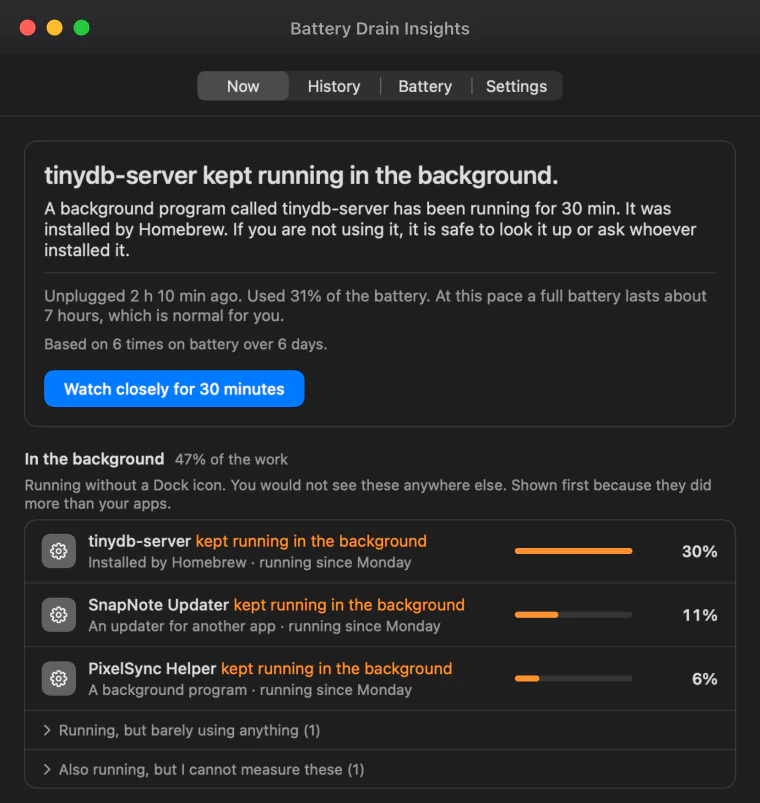
What does "share of the work" mean?
It is how hard a program worked compared with everything else, measured from processor time. macOS does not tell an app from the App Store how much battery each program used, so the app does not show that. The battery total at the top is the real reading from the battery.
A program with 30% of the work did about a third of what your Mac's processor was asked to do since you unplugged. Work is what software adds to battery use. The screen adds to it whatever is running, which is why the Battery tab also lists screen settings.
What is the background list?
Many programs run with no window and no Dock icon: helpers that apps leave behind, things installed with tools like Homebrew, local servers. They are listed first when they did more than your apps. The advice under a row can show you where the program is on your Mac, so you can decide whether you still need it.
Why are some programs marked "not measured"?
Some programs run under the system's account, not yours. macOS lets the app see that they are there, and does not let it see how hard they work. They are listed apart and marked not measured, so that nothing is hidden from you.
What is the battery diary, and is it safe to allow?
Your Mac keeps its own diary of the battery: when it slept, when it woke, and how much charge it had. With your permission the app reads it, so it can show the last two weeks from the first day, every night included. It only reads the diary, and the diary never leaves your Mac.
You can stop this at any time in Settings, with Stop reading it. Without the diary the app still works. It then knows only what happened while it was running, and it cannot report on nights before it was installed.
What does the app show for a Mac that drains while closed?
A closed Mac should lose very little. When it lost more than it should, History says how much, how long your Mac was really awake, and what kept it awake when that can be told. The advice names the app to quit before closing the lid, or the setting to change.
The background to this is in the guide: why a MacBook battery drains while it is closed.
What does Watch closely do?
Normally the app looks every 30 seconds, which uses very little. Watch closely for 30 minutes makes it look every two seconds. It gives a first rough answer after about two minutes and catches what starts and stops within seconds. It uses more battery while it runs, and it ends with a report.
What does the dot on the menu bar icon mean?
The icon is a battery with a drop beside it, at the top right of your screen. Click it for a short summary and a button that opens the window. A dot on the icon means something stood out since you last looked. You can switch the icon off in Settings.
While the window is closed, the app lives in the menu bar and leaves the Dock. Switch on Keep in Dock in Settings to keep it there.
When does the app send a notification?
On a Mac where nothing unusual happens, never. When something uses a lot of battery fast, it tells you once. Slower things, like a program you did not know was running or a night that cost too much, come as one note a day at most. The app asks once, at the first launch.
You can turn notifications on later in the app's Settings, and change the details in System Settings under Notifications.
My battery is old. What should I watch for?
Every battery wears. Below about 80% of what it held when new, every charge is clearly shorter, and Apple recommends service. When macOS itself says the battery needs service, the app repeats it on the Battery tab. A very old battery can also switch the Mac off suddenly, and it can swell.
The signs of a swollen battery: the trackpad gets hard to click, the bottom of the Mac bulges, the Mac rocks on a flat table, or the lid no longer closes flat. A swollen battery can overheat. Stop charging it, do not press on it, and have it replaced. Apple's page on the service verdict is If you see battery "Service Recommended" on your Mac laptop.
Common questions
The window says "Unplug and I start measuring". Is something wrong?
No. Your Mac is on the charger, and the app measures only on battery. Unplug and it starts. While plugged in you can press Show last time on battery to see the most recent time you were unplugged.
Why does it say it needs more time?
A first picture takes about 15 minutes on battery. Before that there is too little to rank fairly. A line on the Now tab shows how far along it is. For a faster answer, press Watch closely for 30 minutes.
Nothing stands out, but my battery still drains fast. What now?
Then no single program is the cause. Look at the Battery tab for a worn battery and for settings that shorten battery life, lower the screen brightness, and run Watch closely once: it catches programs that start and stop within seconds.
Why do the figures differ from Activity Monitor?
They measure different things. Battery Drain Insights shows each program's share of the work since you unplugged, from processor time. Activity Monitor shows Energy Impact, a relative figure with no unit, for this moment or as a 12 hour average.
The app says it can no longer read the battery diary. Why?
macOS took the permission back, which can happen after a system update. It is one click to give it again: open Settings in the app and choose Let me read it.
Open at login does not work on macOS 12. What do I do?
On macOS 12, add the app yourself: open System Preferences, Users & Groups, Login Items, and add Battery Drain Insights to the list.
I also use Broken Charger. Why do the two apps show slightly different figures?
Broken Charger comes from the same developers and has a battery page of its own. The two apps do not talk to each other and share nothing. Each one watches for itself, so their figures can differ a little.
How do I erase what the app has recorded?
Open the History tab and press Clear battery history. The app forgets every time on battery it has recorded, including the one in progress, and starts watching again from now. Records older than 30 days are deleted automatically.
How do I remove Battery Drain Insights?
Quit the app, then drag it from the Applications folder to the Trash. If you want its records gone first, press Clear battery history on the History tab before you remove it.
How do I reach the developers?
In the app, open Settings and press Get Help. An email opens in your own mail program, and you choose whether a diagnostics file goes along. You can also write through the contact page of this website.
Still stuck?
Write to us through the contact page, or press Get Help in the app's Settings. Battery Drain Insights is a Mac app for MacBook laptops (macOS 12 or later, Apple silicon and Intel) that shows what is draining the battery in plain words: which background programs and apps did the most work since you unplugged, what kept the Mac awake while its lid was closed, and how worn the battery is. It never connects to the internet. Nothing is collected, and there are no ads and no account.
Get Battery Drain Insights on the Mac App Store